

Most people set up email marketing forms and have absolutely no idea where their subscribers are actually coming from. It’s like running a restaurant and never asking customers how they heard about you. Then wondering why nobody’s showing up on Tuesdays.
UTM parameters fix that.
They’re tiny little breadcrumbs your visitors drag in on their shoes. They tell you exactly which link, post, ad, or “I swear this will work” campaign brought someone to your form.
Think of it like this: You’re throwing a party. Some people come because they saw your Facebook post. Some come because you texted them. Some saw a flyer. UTM tracking is like asking each person “Hey, how’d you hear about this party?” as they walk in the door.
Except you don’t have to ask. It happens automatically.
In this guide, I’ll show you how to set this up with MailerLite. And don’t worry – if you can copy and paste, you can do this.
What the Hell Are UTMs Anyway?
UTM parameters are just tags you add to links. Five of them exist. You don’t need to use all five. But you’ll feel very powerful if you do.
- utm_source – Where they came from (Google, Facebook, your uncle’s blog)
- utm_medium – How they got there (paid ad, email, carrier pigeon)
- utm_campaign – Which campaign did the damage (summer sale, black friday, “we forgot to promote this” promo)
- utm_term – Keywords for paid search (if you’re doing that)
- utm_content – Which specific link or ad they clicked (helpful when you’re testing different versions)
Step 1: Tell MailerLite You’re Going to Track This Stuff
MailerLite needs a place to store your UTM data. So we’ll create custom fields.
Go to MailerLite → Subscribers → Custom fields and create fields for whatever UTMs you want to track.
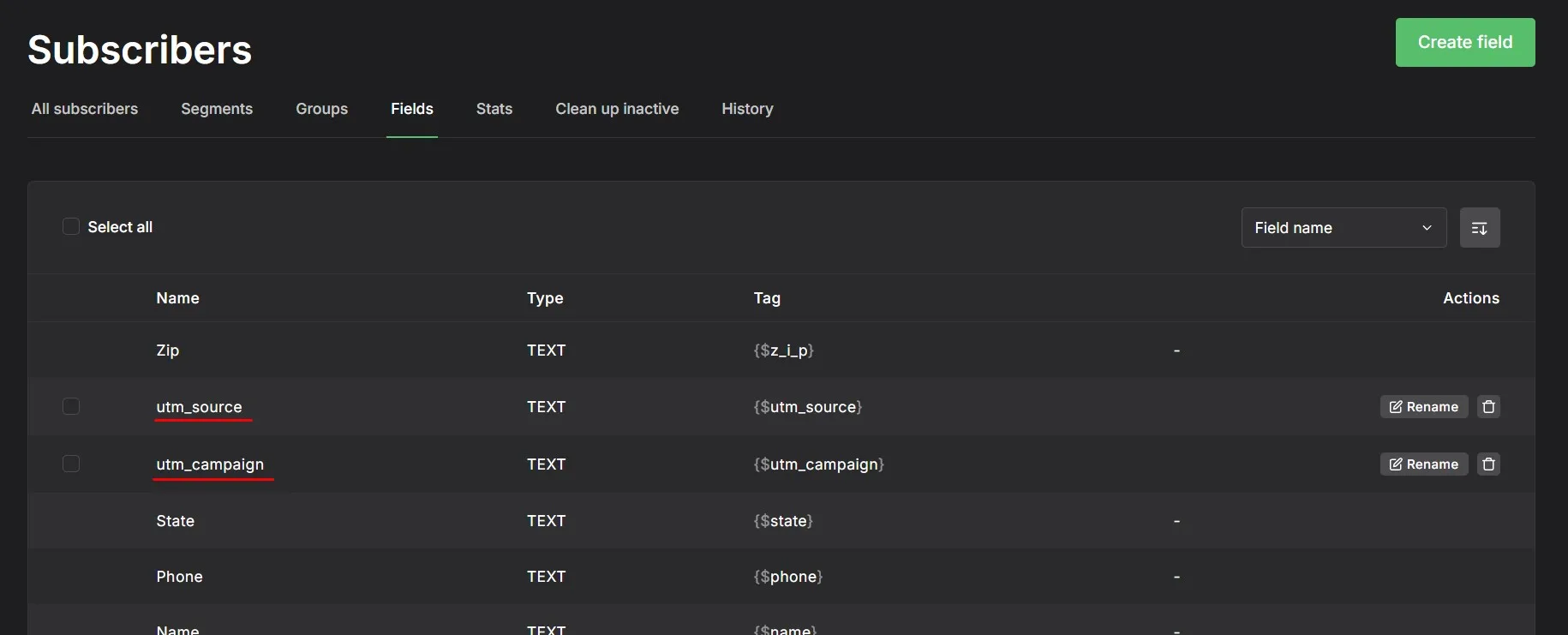
Make five fields named exactly like this (no extra spaces, no creative spelling, no “utmSource”:
- utm_source
- utm_medium
- utm_campaign
- utm_term
- utm_content
If you only want to track utm_source, cool. Start there. It already puts you ahead of 90% of marketers who don’t.
Step 2: Set Up Your Form
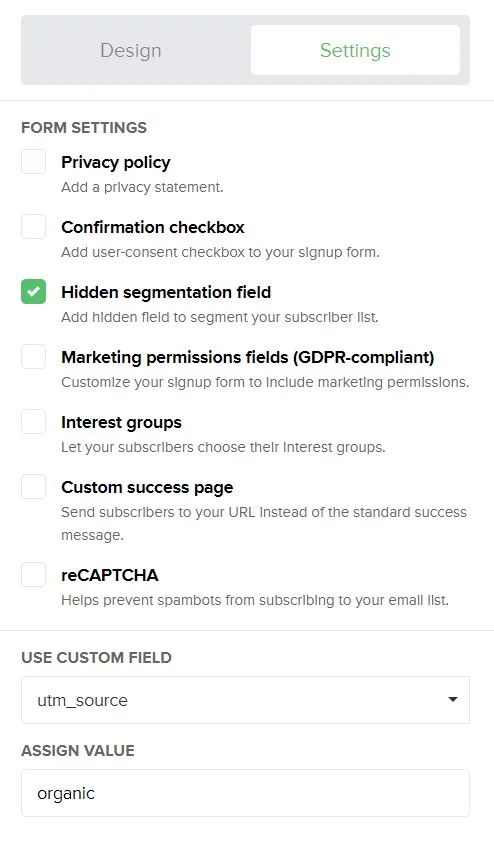
- Create a new form in MailerLite → Forms
- Enable Hidden segmentation field
- Set “Use custom field” as your “utm_source” parameter
- Set the default value to something. When left empty, the form will not generate a hidden field for some reason.
- Then click “Done Editing.”
Want all five UTMs?
MailerLite won’t add all five hidden fields for you inside the form builder. So you’ll do it the tricky way.
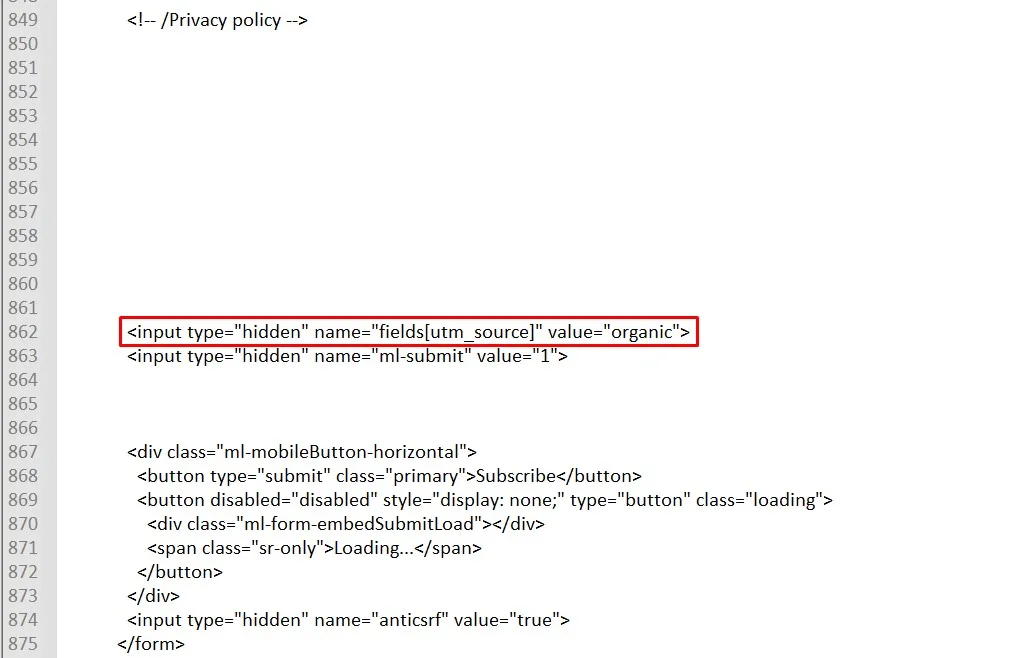
Look for the hidden input field in the code (around line 862), and duplicate it four times – once for each of the other UTM parameters.
Add four more hidden fields in the provided HTML code:
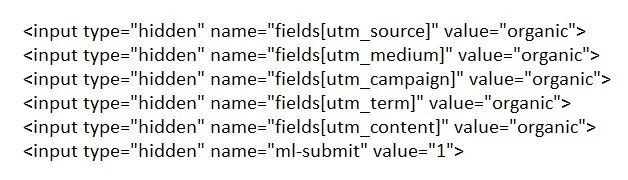
Save this edited HTML, you’ll need it later.
Step 3: Install MailerLite’s Universal Script
If you use the MailerLite WordPress plugin, skip this. It’s already done.
If not, you need to add their Universal script to your website’s header. Either paste it directly into your theme’s header.php file, or use a plugin like “Insert Headers and Footers.”
<!-- MailerLite Universal -->

<script>

(function(w,d,e,u,f,l,n){w[f]=w[f]||function(){(w[f].q=w[f].q||[])

.push(arguments);},l=d.createElement(e),l.async=1,l.src=u,

n=d.getElementsByTagName(e)[0],n.parentNode.insertBefore(l,n);})

(window,document,'script','https://assets.mailerlite.com/js/universal.js','ml');

ml('account', '888888'); // Replace '626382' with your MailerLite account ID

</script>

<!-- End MailerLite Universal -->
Change that ‘888888’ to your actual MailerLite account ID.
Step 4: Magic JavaScript That Does All the Work
This is the part that actually captures the UTM parameters from your URL and stuffs them into those hidden form fields.
Add this JavaScript code to your site (same place as the MailerLite script, or at the bottom of your page before the closing </body> tag):
JS script to capture all five UTM parameters
<!– Custom Script to Capture UTM Parameters –>
<script>
function getParameterByName(name) {
name = name.replace(/[\[]/, “\\[“).replace(/[\]]/, “\\]”);
var regex = new RegExp(“[\\?&]” + name + “(=([^&#]*)|&|#|$)”),
results = regex.exec(location.search);
if (!results || !results[2]) return ”;
return decodeURIComponent(results[2].replace(/\+/g, ” “));
}
function setUtmParameters() {
var utm_source = getParameterByName(‘utm_source’);
var utm_medium = getParameterByName(‘utm_medium’);
var utm_campaign = getParameterByName(‘utm_campaign’);
var utm_term = getParameterByName(‘utm_term’);
var utm_content = getParameterByName(‘utm_content’);
var utmSourceField = document.querySelector(‘input[name=”fields[utm_source]”]’);
var utmMediumField = document.querySelector(‘input[name=”fields[utm_medium]”]’);
var utmCampaignField = document.querySelector(‘input[name=”fields[utm_campaign]”]’);
var utmTermField = document.querySelector(‘input[name=”fields[utm_term]”]’);
var utmContentField = document.querySelector(‘input[name=”fields[utm_content]”]’);
if (utm_source && utmSourceField) {
utmSourceField.value = utm_source;
}
if (utm_medium && utmMediumField) {
utmMediumField.value = utm_medium;
}
if (utm_campaign && utmCampaignField) {
utmCampaignField.value = utm_campaign;
}
if (utm_term && utmTermField) {
utmTermField.value = utm_term;
}
if (utm_content && utmContentField) {
utmContentField.value = utm_content;
}
}
function waitForElement(selector, callback) {
var interval = setInterval(function() {
if (document.querySelector(selector)) {
clearInterval(interval);
callback();
}
}, 100);
}
document.addEventListener(“DOMContentLoaded”, function() {
waitForElement(‘input[name=”fields[utm_source]”]’, setUtmParameters);
});
</script>
JS script to capture only utm_source parameter
<!– Custom Script to Capture UTM Source Parameter –>
<script>
function getParameterByName(name) {
name = name.replace(/[\[]/, “\\[“).replace(/[\]]/, “\\]”);
var regex = new RegExp(“[\\?&]” + name + “(=([^&#]*)|&|#|$)”),
results = regex.exec(location.search);
if (!results || !results[2]) return ”;
return decodeURIComponent(results[2].replace(/\+/g, ” “));
}
function setUtmSource() {
var utm_source = getParameterByName(‘utm_source’);
var utmSourceField = document.querySelector(‘input[name=”fields[utm_source]”]’);
if (utm_source && utmSourceField) {
utmSourceField.value = utm_source;
}
}
function waitForElement(selector, callback) {
var interval = setInterval(function() {
if (document.querySelector(selector)) {
clearInterval(interval);
callback();
}
}, 100);
}
document.addEventListener(“DOMContentLoaded”, function() {
waitForElement(‘input[name=”fields[utm_source]”]’, setUtmSource);
});
</script>
What this code does:
- Looks at your page URL
- Finds any UTM parameters hanging out in there
- Grabs them
- Stuffs them into your hidden form fields
And no, this won’t slow down your website. The script is tiny and runs asynchronously, which is tech-speak for “it doesn’t get in the way of anything important.”
Step 5: Put Your Form on Your Page
Now just embed your MailerLite form wherever you want it on your site.
Use the MailerLite shortcode or embed code. Same as you normally would.
The difference? Now your form is silently capturing where everyone came from.
If you're capturing only utm_source
Use the following shortcode to embed the form where you want it to appear:
<div class="ml-embedded" data-form="XXX"></div>
Note: Replace XXX with your actual form ID provided by MailerLite.
If you're capturing all five UTMs
Use your edited HTML code with 5 hidden fields.
Step 6: Test This Thing
Don’t just assume it works. Test it.
Open your website with UTM parameters in the URL, like this:
https://yourwebsite.com/utm-form-test/?utm_source=google&utm_medium=cpc&utm_campaign=summer_sale&utm_term=shoes&utm_content=ad1
Fill out and submit the form.
Then check MailerLite. Look at that new subscriber’s profile. You should see all those UTM values captured in their custom fields.
If you don’t see them, double-check your JavaScript placement and make sure those hidden fields are named exactly right.
Why This Matters?
Because most businesses make decisions based on gut feelings and wishful thinking.
“I think Facebook ads are working.”
“Instagram seems good.”
“Maybe I should try TikTok?”
Translation: guessing while spending money.
With this setup, you’ll actually. You SEE that “73% of my subscribers came from that one Reddit post” or “My Facebook ads brought in 12 people and they spent nothing.”
That’s the difference between guessing and knowing.
And knowing means you can double down on what works and stop wasting time (and money) on what doesn’t.
Set this up once. Get clarity forever.
You’re welcome.